.png?width=202&height=50&name=Logo%20(1).png)
⚒️ Building Reward Letter Templates
Pequity Reward Letter Templates are customizable based on your individual branding, design, and copy. Below are best practice steps for ensuring your Comp Cycle Reward Letters are setup accurately and efficiently before your cycle closes.
- Template Name Alignment
Ensure that your template names exactly match the values used in theReward Letter Template Namefield. This field is used to map employees to the appropriate reward letter template, so any mismatch may result in employees being assigned the wrong template. - Generated Letter Naming Conventions
Specify if any unique naming conventions (e.g. EID, lastname, firstname, etc) need to be followed for upload into your HRIS or other systems. You can use the standardReward Letter File Namefield to configure the naming convention. - Confirmation
Review all template copy, placeholders, logos, and signatories are accurately incorporated during the Template QA. - Letter Generation
Generate all letters before granting access to other roles or distributing them via email. This ensures that the most up-to-date employee information, including any recent compensation changes, is reflected in the final version of each letter. Additionally, verify that all employees who should receive a letter have been assigned the latest and correct letter template, and confirm that each letter has been generated successfully and accurately.
⚙️ Functionality Overview
- Accessing Reward Letters
Within the cycle, look for the reward letter icon, which is located right next to the change history icon.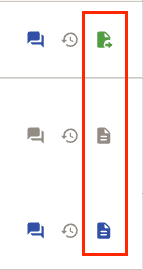
- Green icon = Sent to the email address assigned to the
emailfield - Gray icon = Letter not yet generated/ no available letter
- Blue icon = Letter has been generated/ there is an available letter
- Green icon = Sent to the email address assigned to the
- Options To Select
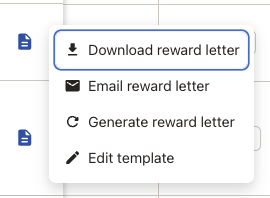
- Download reward letter: Allows downloading of the reward letter directly to your device.
- NOTE: This option is not available if there is no reward letter generated.
- Email reward letter: Optionally, send the reward letter via email. This feature can be hidden if not needed.
- NOTES:
- This option is not available if there is no reward letter generated or if there is no email address added in the
emailfield. - This option will also not appear if the role does not have the permission to send out reward letters.
- Email Configuration: If using email functionality, ensure the email address from your domain (e.g., @getpequity.com or @pequity.app) is whitelisted by your IT team to avoid emails going to spam.
- This option is not available if there is no reward letter generated or if there is no email address added in the
- NOTES:
- Generate reward letter: Allows generation of the letter real time. This is only available for admins.
- Edit template: Selecting this option takes you to the cycle's Settings page > Reward Letter Templates tab. This options is also only available for admins.
- Download reward letter: Allows downloading of the reward letter directly to your device.
- Export Reports
Track who has sent letters via an exportable report, accessible through the cycle's settings. - Reward Letter Visibility
Control when to surface the reward letter functionality to specific roles through the settings page toggle. - Bulk Operations
- Emailing: If enabled, bulk email all letters at once. If not using this feature, the button will not function.
- Downloading: Bulk download is possible, allowing users to download all letters in a zip file.
💭 Frequently Asked Questions
- Can Planners download the letters in bulk as well?
- Yes! Planners can bulk download their employees' reward letters by selecting the check box next to employee names, then clicking on the "Download" button that appears in the action bar at the bottom of their screen.
- Is there a way to let the planners know that the letters have been generated in the app?
- The Pequity tool has the ability to send notifications out once groups/ waves have been enabled. We don't have the functionality to notify planners once the letters have been generated just yet! Informing them that the cycle has been ended and letters are available are best communicated internally.