.png?width=202&height=50&name=Logo%20(1).png)
Overview
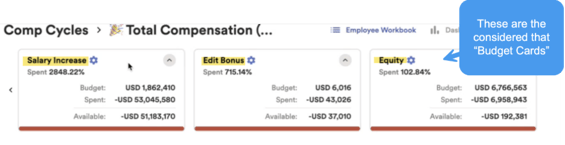
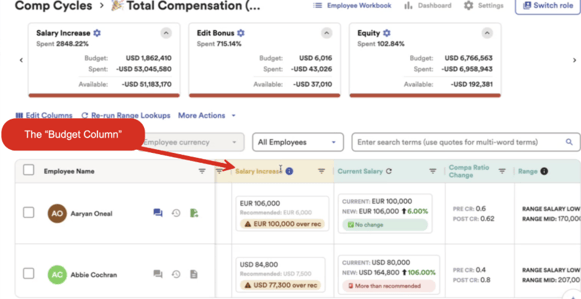
Budgets are configured in two primary locations within the workbook, with a potential third location depending on your setup.
Budget Locations
- The Budget Card — located directly in the workbook
- The Comp Element Column — the column tied to the specific budget
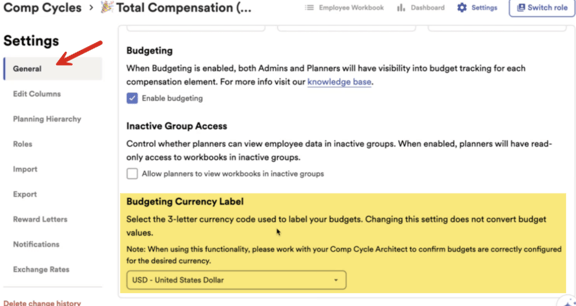
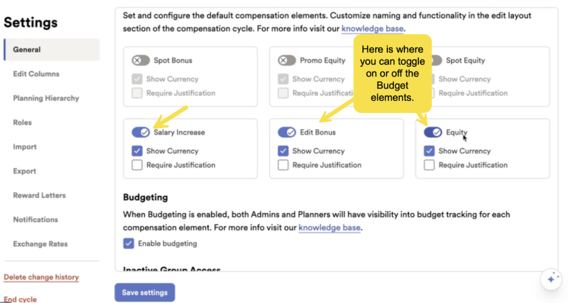
3. General Settings (conditional) — where you can:
-
Set the global budgeting currency label
-
Toggle comp elements on or off
-
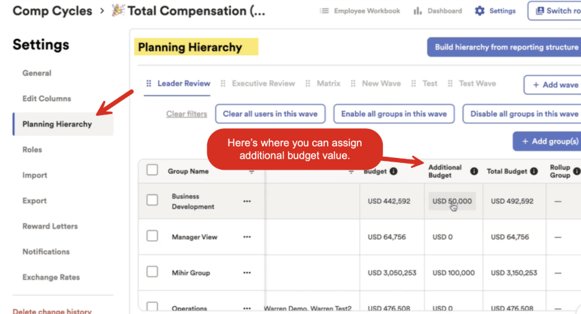
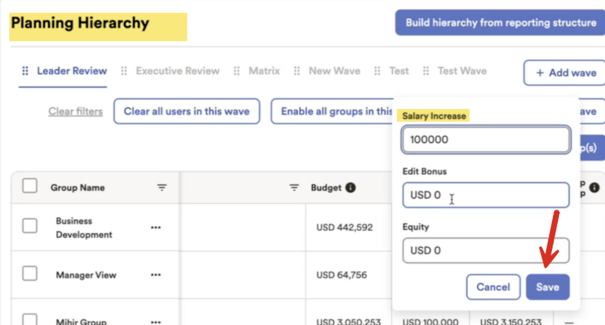
Assign additional budget values to each planning group and comp element via the Planning Hierarchy
Budget Approaches
There are two primary ways to set up a budget:
Bottom-Up Budget
-
Budget is calculated using a formula per employee, then rolled up into a total.
-
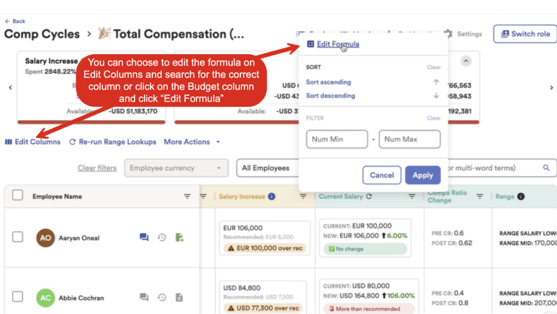
To configure, navigate to the comp element formula via Edit Formula on the column, or use Edit Columns.
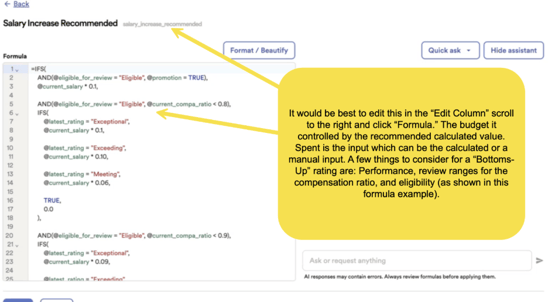
Key considerations when building the formula:
-
Performance ratings — define the increase percentage per rating (e.g., Exceptional = 10%, Meeting = 6%)
-
Compa ratio — can be used to calculate a market adjustment
-
Eligibility — budget can be calculated for eligible employees only, rather than all employees
The result is a per-employee number that sums into the total budget.
Top-Down Budget
A fixed budget is set externally (by Finance, HR, or another team) and applied to each planning group.
The calculation methodology is not managed within the tool.
Budget vs. Spent
Budget (Recommended)
-
Controlled by the calculated formula value
Spent (Input)
-
Can be calculated or manually entered; drives the available budget remaining
-
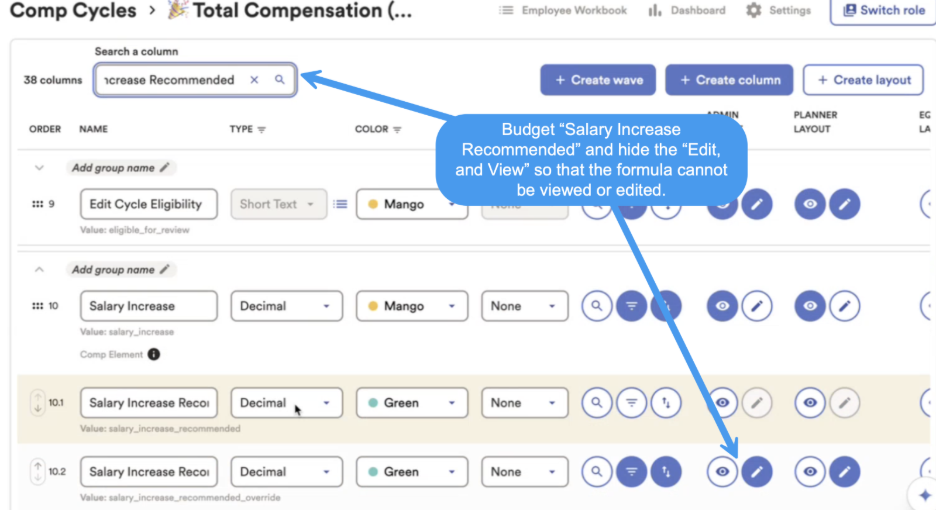
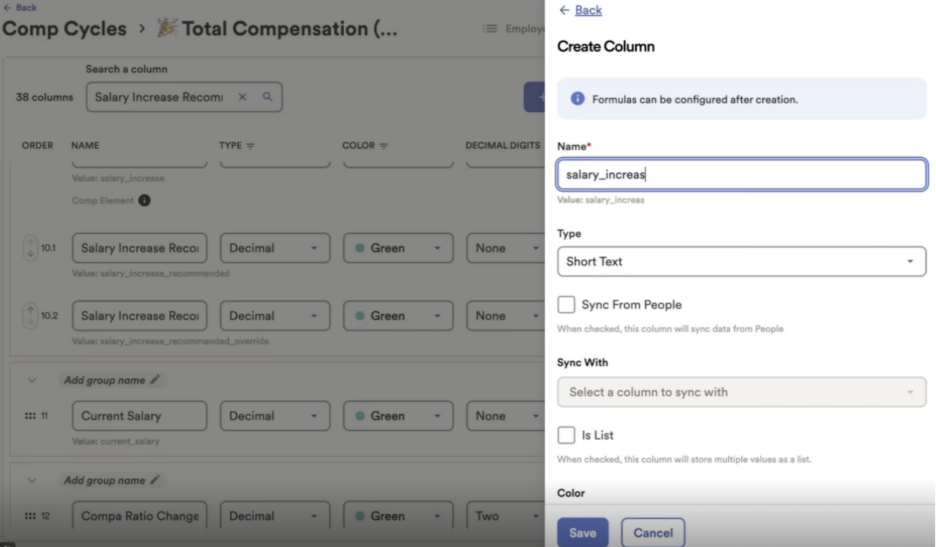
Back door column (which the column would be hidden and un-editable) so that the formula is set in the backend.
-
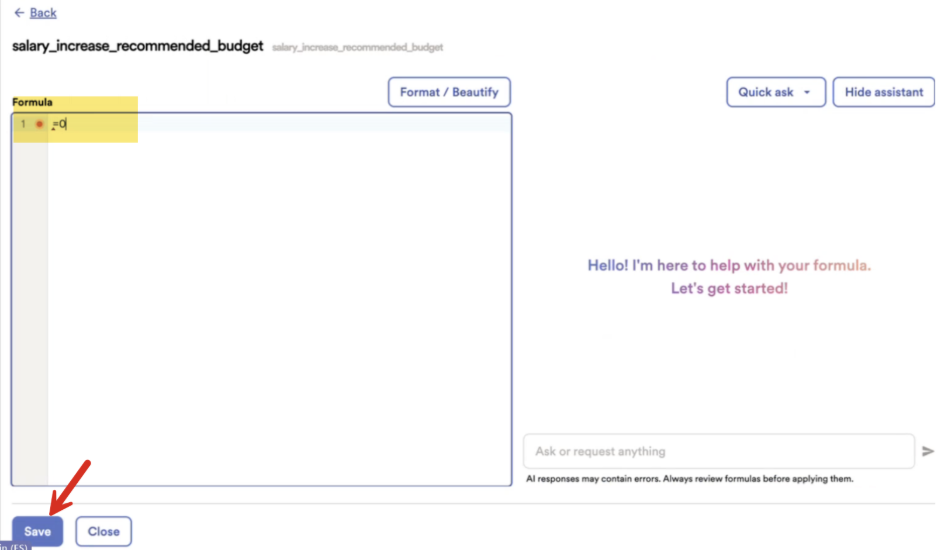
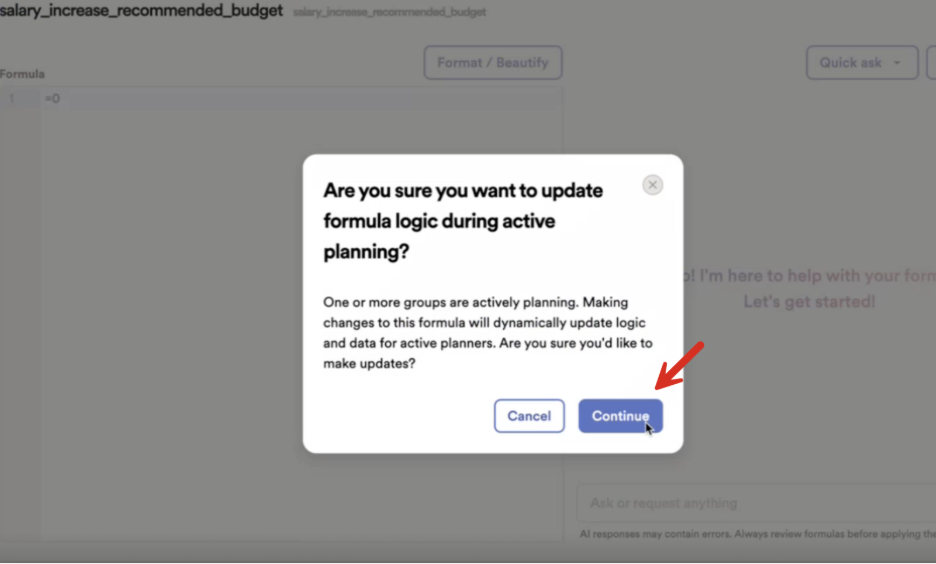
The column would be hidden from view and un-editable. Since the formula will be in the backend the formula should show =0 (as shown below).
Summary
Budgets can be configured in different ways depending on your organization's compensation planning process. Whether you use a calculated budget, a fixed budget provided by Finance or HR, or a combination of both, the workbook supports multiple configuration methods to meet your planning needs. Administrators can control where budget values originate and how they are displayed, while planners interact with the budget information provided to them during the compensation cycle.