.png?width=202&height=50&name=Logo%20(1).png)
Want to keep your numbers in check? 🔎 You can set limits on decimal, currency, or percentage fields so that values stay within the range you decide.
Here’s how:
- Head over to the Edit columns page in your workbook.
- Find the field you’d like to add limits to.
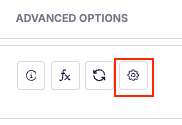
- Click the little gear icon to open Advanced options.
- Under Validation rules, you’ll see two ways to set limits:
- 🗿 Static limits: Enter a fixed minimum and/or maximum number directly into the fields.
- Example: Minimum =
10, Maximum =100. This means values must always fall between 10 and 100.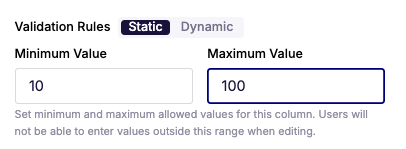
- Example: Minimum =
- 🤖 Dynamic limits: Instead of typing in numbers, you can link the limit to another field in your workbook.
- Example: Use a “Promotion Limit” field as the maximum for “Promotion Increase.” In this setup, the “Promotion Limit” field has a formula:
- If Promotion = TRUE, the limit is
10,000. - If Promotion = FALSE, the limit is
0. So the maximum allowed value for “Promotion Increase” changes automatically based on whether a promotion is active.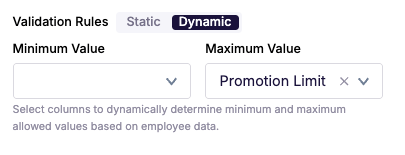
- If Promotion = TRUE, the limit is
- Example: Use a “Promotion Limit” field as the maximum for “Promotion Increase.” In this setup, the “Promotion Limit” field has a formula:
- 🗿 Static limits: Enter a fixed minimum and/or maximum number directly into the fields.
- Hit Save to lock in your rules.
What Happens Next
- If someone tries to enter a value too low or too high, they’ll see an error.
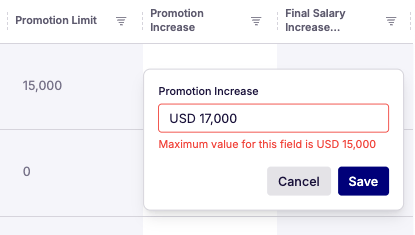
- The system won’t let invalid numbers through — keeping your data clean and consistent.
🗑️ To remove limits, simply clear the numbers from the Minimum and Maximum fields for static values, or deselect the linked field in the dynamic section.