.png?width=202&height=50&name=Logo%20(1).png)
This feature allows you to create a new compensation cycle within Pequity.
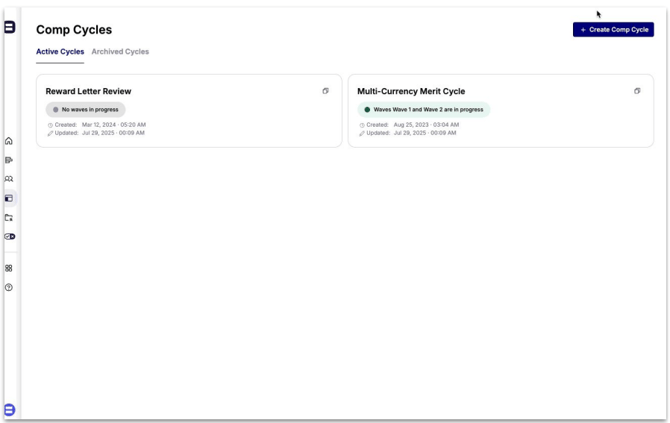
Steps:
- Navigate to your Comp Cycle homepage and click the Create Comp Cycle button
- Enter a name for your new cycle
- Note: You can rename your cycle at any time, so don't worry if you haven't finalized the name yet
- Click Create
Once created, you'll be automatically redirected to your new cycle's page.
The next step is to determine the compensation elements for this cycle.
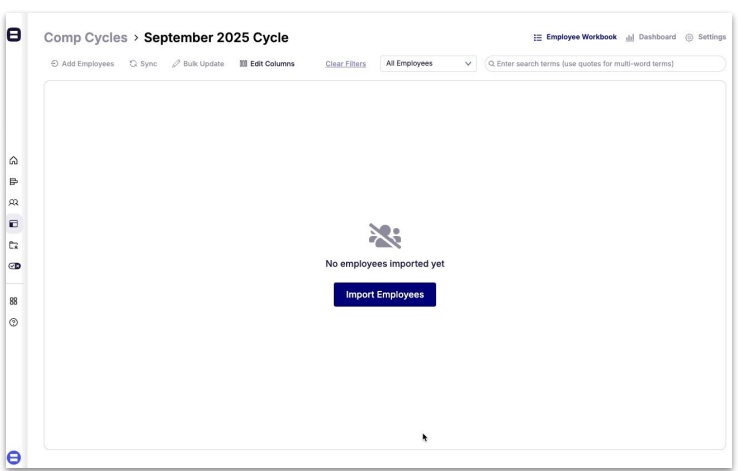
What are Comp Elements?
In Pequity, comp elements are the individual building blocks that make up an employee's total compensation package in a cycle. Think of them as the categories of pay you're planning for. Each cycle can be configured with one or more comp elements depending on what your organization manages.
Steps:
- Navigate to the cycle's Settings page
- In the General tab, select the comp elements that will be budgeted for in the cycle
- Note: You can rename and/or repurpose comp elements as needed
- Configure your budgeting preferences:
- Choose whether to enable budgeting for this cycle
- Update the currency that will be used for budgeting
- Click Save Settings at the bottom of the page
Setting Up Planning Groups

Planning groups in Pequity let you assign employees into specific groups for easier review and approval during a compensation cycle.
Steps:
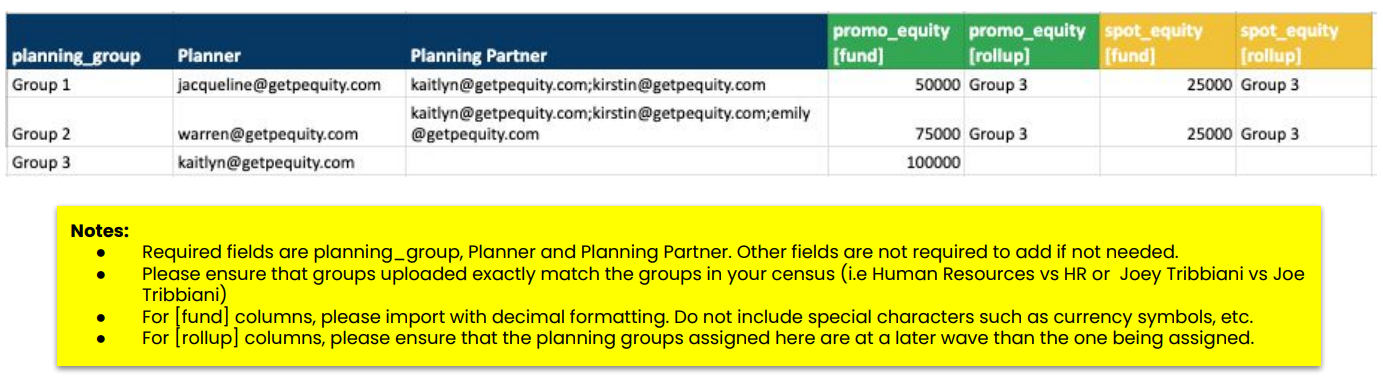
- Prepare your CSV import file with the following columns:
Required Headers:
- planning_group - The groups that will be assigned to waves and employees. These should match the groups in your census
- Planner - Email addresses of users assigned as planners for the planning groups
- Use semicolons (;) to separate multiple email addresses
- Planning Partner - Email addresses of users assigned as planning partners for the planning groups
- Use semicolons (;) to separate multiple email addresses
Optional Headers:
- Other roles - Additional roles like HRBP or Communication, depending on your setup
- Use semicolons (;) to separate multiple email addresses
- Budget and Budget rollup - Budget information specific to each compensation element
Assigning Discretionary Funds and Budget Rollups
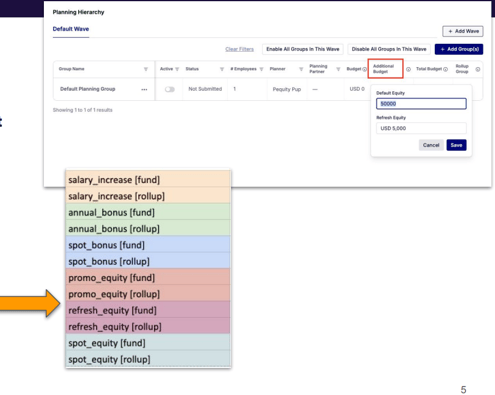
If you would like to assign discretionary funds and budget rollups per group, you can use the comp_element [fund] and comp_element [rollup] headers in your CSV file.
These values will appear in the Planning Hierarchy tab under Additional Budget (per element) and Rollup Group.
Available Headers:
- comp_element [fund] - Assigns a discretionary fund amount to the compensation element for each planning group
- Enter as a decimal value (e.g., 50000)
- comp_element [rollup] - Defines which planning group the current group's budget should roll up to
Note: These are the default headers available for each comp element.
Uploading Your Planning Groups File
- Navigate to the Import tab in your cycle's Settings page
- Select or drag and drop your completed CSV file
- Click the Upload Planning Group CSV button
Note: Planning groups will not appear in the Planning Hierarchy tab until at least one employee has been assigned to them.
Pro Tip: Assign yourself as a planner during testing so you can simulate the exact experience planners will have. Once you're ready to launch, switch your role to planning partner—this way, you can still preview and validate what planners see after the cycle goes live.
Importing Data into Your Cycle
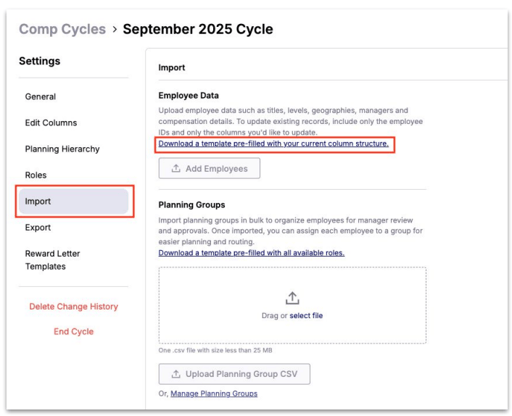
You're now ready to import data into your cycle! To begin, click "Download a template pre-filled with your current column structure." This will download the default template for your cycle.
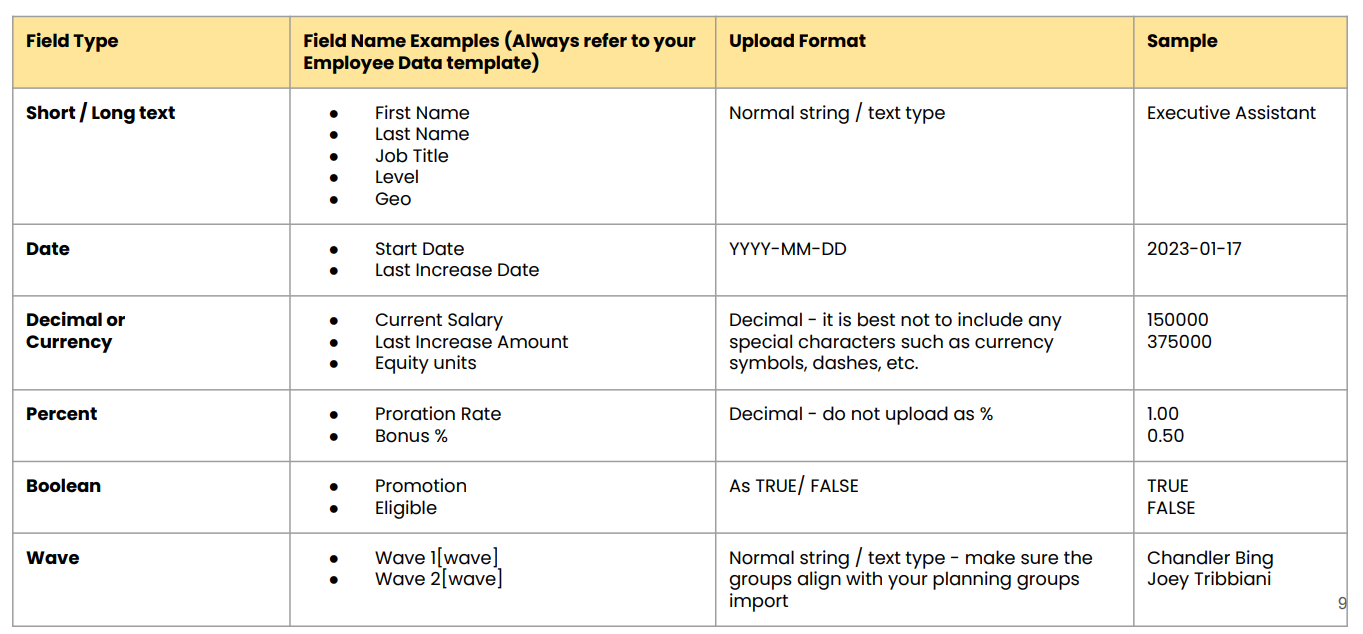
The template includes the core headers already set up for your cycle, such as:
- EID (should always be present in the import file. This is the unique identifier)
- First Name
- Last Name
- Job Family Group
- Job Family
- Level
- Location
- Default Wave [wave]
This file also contains comp element and range fields which you can leave blank for now.
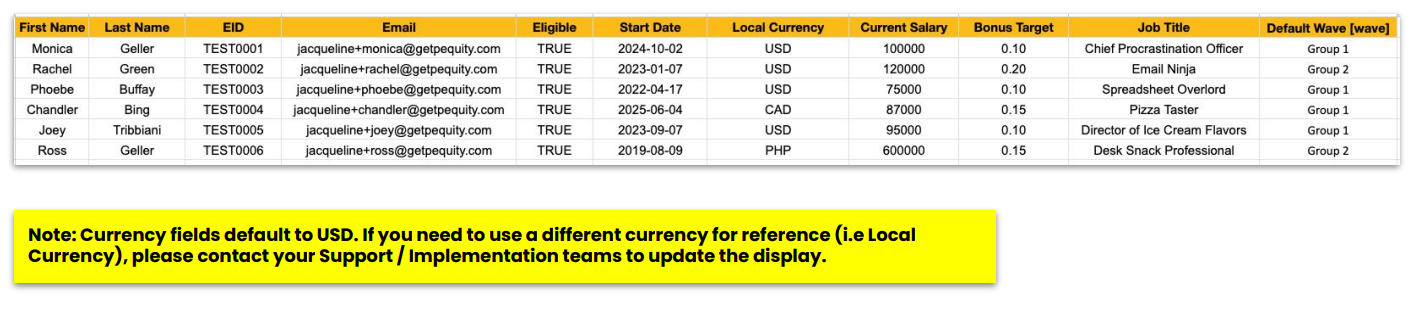
You can add additional columns to your file if you'd like to include more data in your cycle. New columns can be introduced at any time, either by including them in an import file or by adding them directly on the Edit Columns page before uploading your CSV.
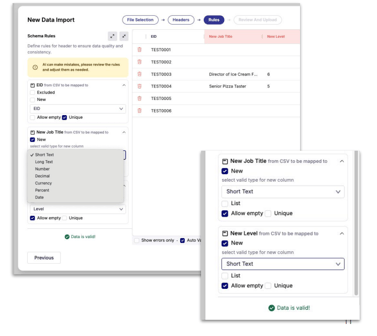
Adding New Columns Through CSV Import
If you're adding new columns through a CSV import, make sure to check the New box in the Rules section and select the appropriate data type. You can also choose to make the field a list type. In that case, the tool will capture all unique values in that column and display them as selectable options.
Validating Your Data
For existing columns, be sure to double-check the data mapping suggested by AI. Check "Show errors only" to have a quick overview of the fields that need validation.
Once everything is valid, proceed with uploading your file.
Bulk Updates
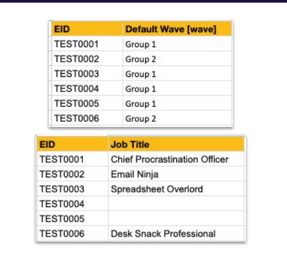
For bulk updates, include only the ID column and the specific field(s) you want to update.
Note: You can upload just the IDs of employees you're updating—uploading the full employee list is optional unless you're making updates across multiple columns.
Important: If a field is left blank in your import file, it will overwrite the existing data with a blank value.
Customizing Your Cycle Display
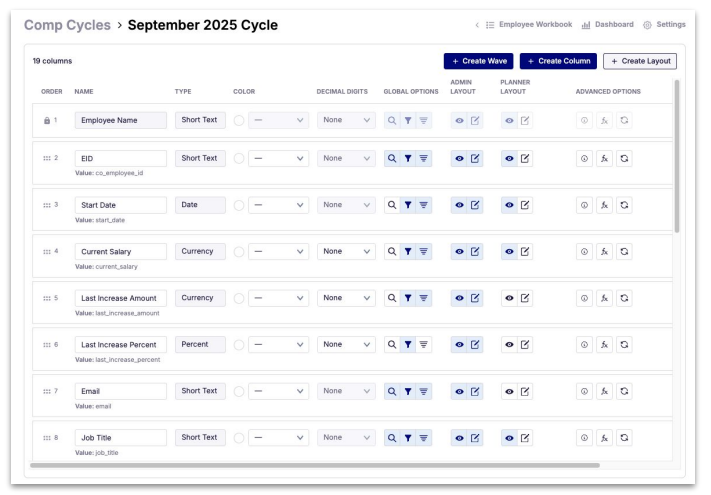
Pequity lets you customize what you see in a cycle so the data feels easy to work with. By configuring your display, you can decide which fields to show, hide, or reorder, making the layout fit your workflow.
1. Go to the Edit Columns Page
From your cycle workbook, click Settings > Edit Columns. Here, you'll see all available fields (both default and any you've added).
2. Choose What to Show or Hide for Every Layout
Toggle the visibility (eye) icons to select which fields should appear in every layout/view.
3. Reorder/Rename Your Columns
Drag and drop fields into the order you prefer. Your chosen order will carry over in every view, so you can match how you like to review data.
4. Update Dropdown Options of List Fields as Needed
Click the list icon next to the List type to manage the dropdown options. From here, you can add single or multiple options for your field.
Using Formulas in Pequity
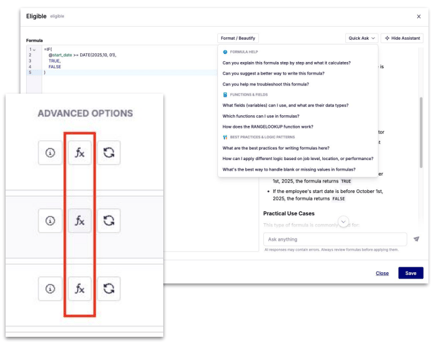
Formulas in Pequity let you calculate values automatically during your cycle. You can use them to set guidelines, caps, or custom calculations for salary increases, bonuses, equity, and more.
1. Go to the Config Columns Page
Navigate to the configuration area where you can set up formulas for your cycle fields.
2. Choose the Field You Want to Build the Formula For
Select the field where you want the formula to apply (e.g., New Salary, Bonus Amount).
3. Build Your Formula
Use standard operators (+, -, *, /) and logical functions (IF, etc.). Reference other fields by their column names (e.g.,
current_salary * 1.05).Tip: You can also leverage the AI to help build your formulas.
4. Save and Apply
Once saved, the formula will calculate automatically for all employees in your cycle.
Setting Up Role Permissions
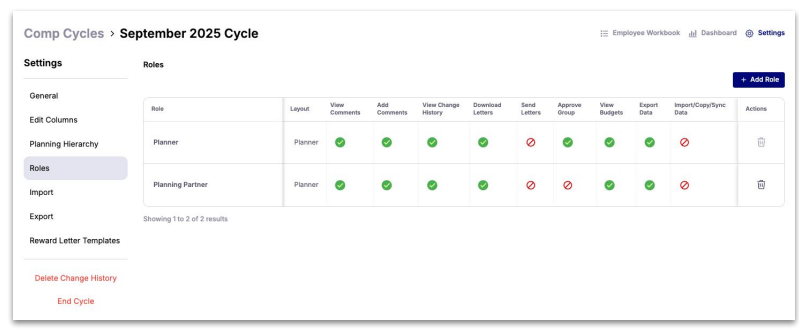
Now that you're preparing to launch, set up the functionalities for each role in your cycle.
1. Go to Settings Page > Roles Tab
Navigate to the Roles section to configure user permissions.
2. Review the Available Roles and Their Capabilities
See what each role can do by default.
3. Toggle Functionalities for Each Role
Use the checkboxes to enable or disable specific functionalities for each role.
4. Add New Roles (Optional)
You can also add new roles directly from this page if needed.
Tip: Double-check role permissions before launch to ensure planners and other users have the correct access.