.png?width=202&height=50&name=Logo%20(1).png)
🛠️ Setting up People Access
Pequity’s People & Ranges Access feature allows Admins to manage what employee data other users like managers or HR partners can view within the platform. With this tool, you can grant access to specific individuals, departments, or custom groups, ensuring each team member only sees the data relevant to their role.
Follow the steps below to set up and customize People Access.
✏️ Configure People Access Settings
-
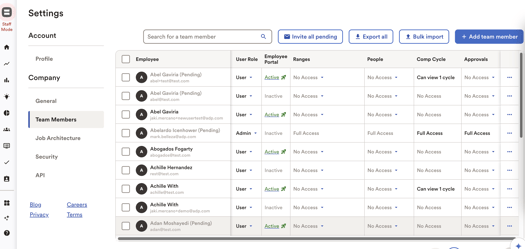
From your Pequity dashboard, go to Settings > Team Members.
-
Locate the People column.
-
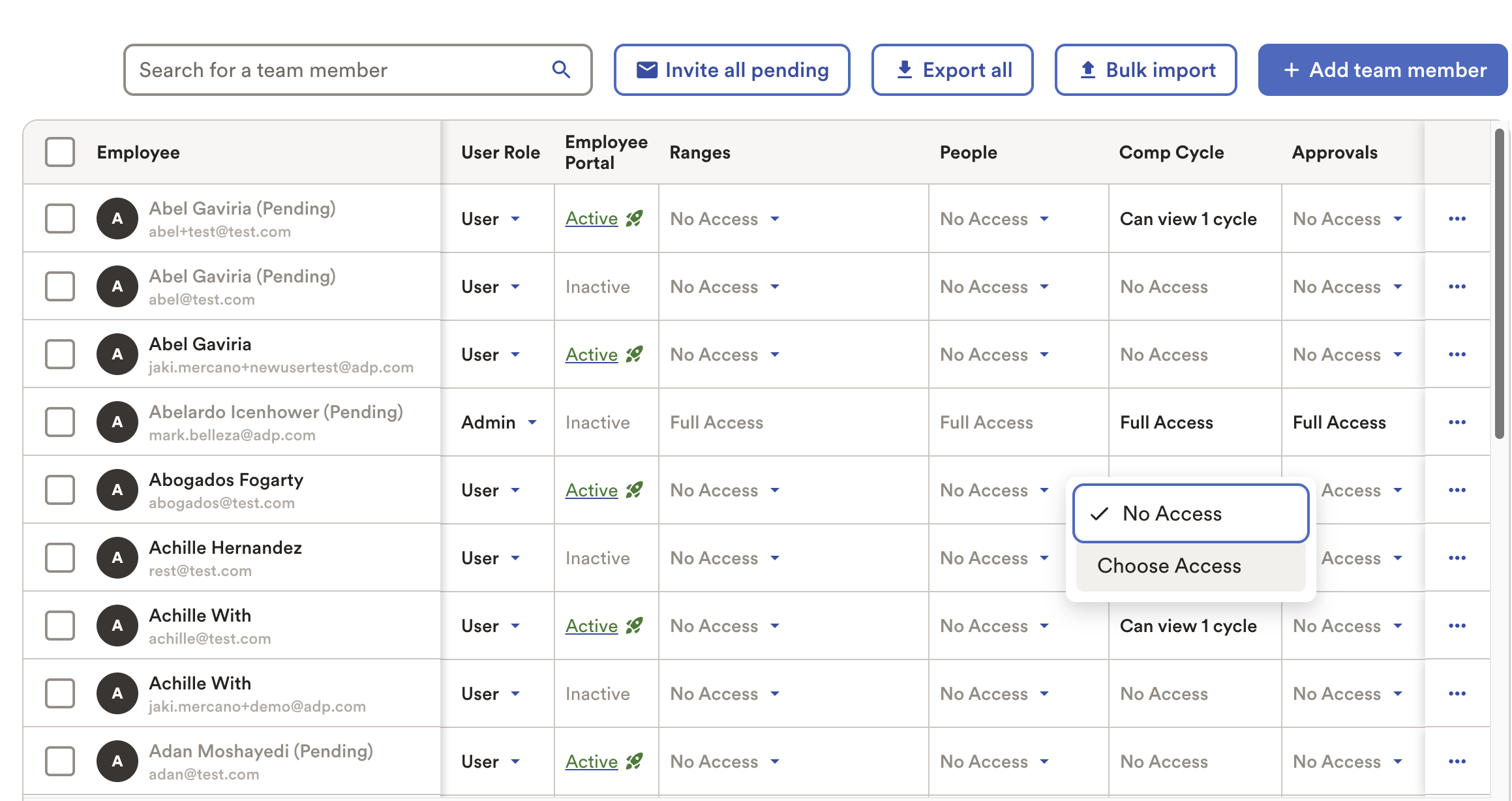
Find the user you want to assign access to and click the dropdown under their People Access column.
-
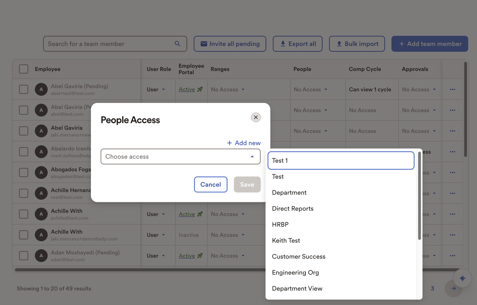
Choose from existing access types, or select Add New to create a new access level.
👥 Default Access Types
Pequity provides two default access options:
-
Direct Reports View
Grants users access only to employees who report directly to them. This is based on the manager/employee relationships defined in your People data (i.e.Manager IDandEmployee IDfields). -
Department View
Grants users access to their full organization. This includes their direct reports, as well as all indirect reports (e.g. their reports’ reports).
✏️ Create Custom Access Types
To create a new access level:
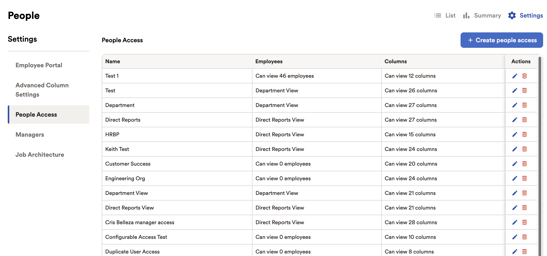
-
Go to your People Page & Click on Settings
-
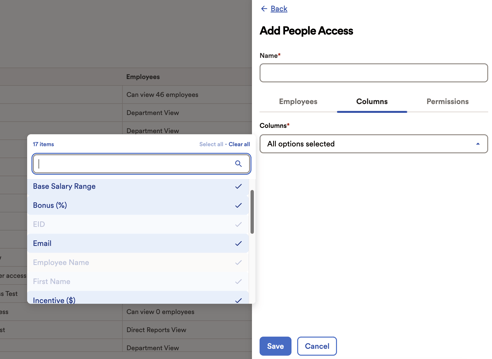
Click + Create People Access and give your new access a name (e.g., “Customer Success Access”).
-
Choose one of the four permission types:
-
Direct Reports View
(See definition above) -
Department View
(See definition above) -
Duplicate User Access
Select an existing user whose access you want to replicate. Ideal for ensuring consistency across similar roles or departments. -
Configurable Access
Create a fully custom access group by selecting individual employees or applying filters based on attributes like department, location, or title. You can assign access in bulk or one-by-one.
-
- Choose which columns they should be able to view via the Columns tab.
- Choose whether or not they can access Employee Portals via the Permissions tab.
- Click Save to create the new access type.
🛠️ Setting up Range Access
Range Access Groups let you assign view permissions to multiple users at once. This is particularly useful when managers or recruiters need access to specific ranges, or you want to apply the same access to a group of people (e.g., all recruiters for a specific geo or function). If a user already had range access before this update, Pequity automatically created a personalized access group for them — typically named using the format:[User Name] Access
✏️ Configure Range Access Settings
- From your Pequity dashboard, go to Settings > Team Members.
- Locate the Ranges column.
- Find the user you want to assign access to and click the dropdown under their People Access column.
- Choose from existing access types, or select Add New to create a new access level.
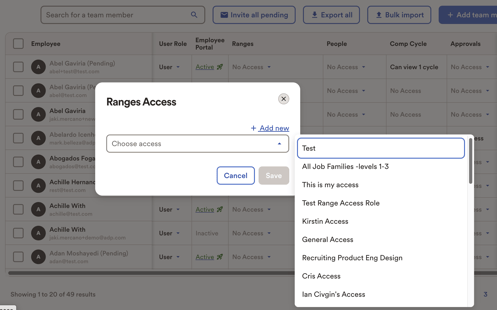
✏️ Create Custom Access Types
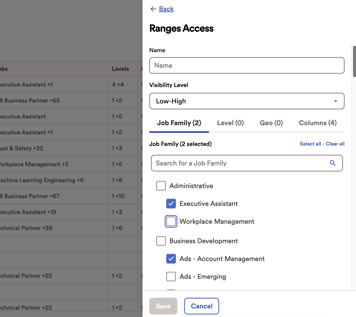
You can create new access from Range Settings:
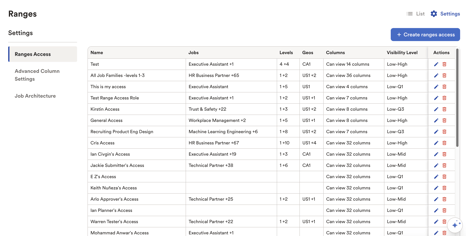
- Navigate to Range Settings.
- Click “Create Ranges Access”.
- Define the name and choose which ranges the group can access.
- Assign team members to the group via the Team Member settings, by single-selecting or bulk-selecting users, and selecting Range Access > Grant Range Access.
📩 Need Help?
If you have questions or need support configuring People Access, reach out to us at support@getpequity.com. We're happy to help!