.png?width=202&height=50&name=Logo%20(1).png)
Woohoo! Congratulations on wrapping up your comp cycle!! 🥳 You are now ready to move on to the next stage: Reward Letters ✉️
As Planners / Planning Partners, your company admins will let you know once reward letters are now ready to be downloaded and/or sent out. To do this, you can follow the steps outlined below:
- Head over to your cycle and open your planning group.
- To download or send letters individually, click on the reward letter icon next to the employee name. Depending on your permissions (ability to download and/or send out) , you will be able to see these options:
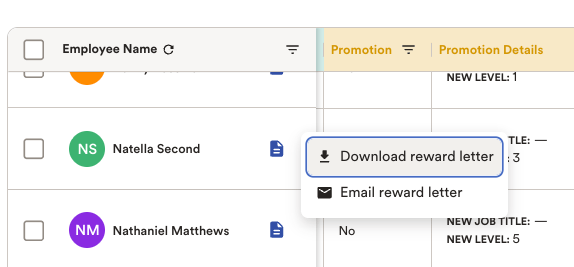
To be able to bulk download or send letters, you can use the checkbox beside the employee name. If you have multiple pages, click on the "Select All Filtered Employees" option in the action bar at the bottom to include everyone.
From the Reward Letters option in the same action bar, select either Download and/ or Email..gif?width=670&height=381&name=2026-07-10_06-15-25%20(1).gif)
Reward Letter Icon meaning:
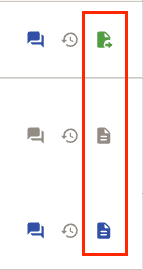
- Green icon = Sent to the email address assigned to the
emailfield - Gray icon = Letter not yet generated/ no available letter
- Blue icon = Letter has been generated/ there is an available letter
Note: If there is no letter available for an employee, this may be because they are not eligible for any increases for this cycle or the admins would like to handle their letter generation outside of Pequity.
💬 Something else on your mind? Reach out to our support team using the in-app help icon and we'd be happy to help!